Creating Custom Image Filters
Creating Custom Image Filters
You can create your own special effect and image-correcting filters using the Custom command. You can also save custom filters and use them in future Canvas X Draw documents.
Filters work with an image one pixel at a time. Using a mathematical formula and the color values of pixels within a specified radius, filters assign each pixel a new color value. In a custom filter, you supply the numbers the filter uses to calculate the new color values.
The same filter can produce different effects in other images. To get the most out of custom filters, spend time experimenting.
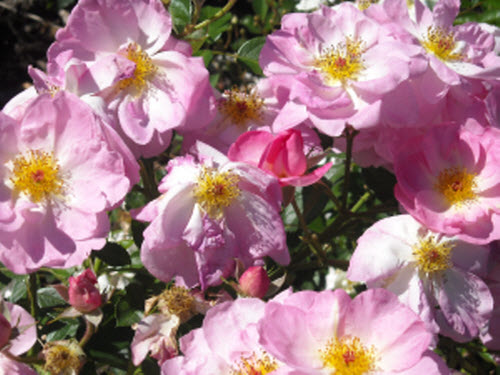 |
| Original |
 |
| Custom filter |
To Use Custom Filters:
- Select one or more paint objects to adjust all the images. You can select an area in one image in Edit mode to adjust the selected area only. If you don’t make a selection, the entire image in Edit mode is affected. This command doesn’t work with paint objects in Black & White mode, and Indexed mode.
- Choose Image | Filter | Other | Custom.
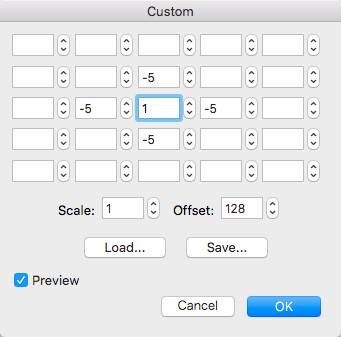
- In the Custom dialog box, type values from -999 to 999 in the boxes in the grid. Canvas X Draw ignores blank boxes.
- Enter a Scale value from 1 to 9,999. To retain the general appearance of the original image, the scale should equal the sum of the entries in the configuration grid. For example:
- Enter an Offset value from -9,999 to 9,999. Positive values increase the brightness of the final outcome while negative values decrease the brightness.
- Turn on the Preview option to check the filter effect. When the settings are correct, click OK.
Grid entries | Sum | Scale |
2 2 1 -1 -1 3 | 2+2+1-1-1+3=6 | 6 |
-1574-328 | -15+7+4-3+2+8=3 | 3 |
To Save a Custom Filter:
In the Custom dialog box, enter the filter settings and click Save. Enter a name and location for the filter and click Save.
To Load a Custom Filter:
In the Custom dialog box, click Load. In the directory dialog box, select the filter file and click Open.
Recent Articles
Quick Reference Guide for canvasxdraw 26 for Windows
Click to view and download the Quick Reference Guide for canvasxdraw version 26. Other related links: Getting Started Guide: https://help.vectorgfx.net/en/canvas_x_draw/getting_started/canvas_x_draw_getting_started.pdf User Guide: ...Quick Reference Guide for canvasxdraw 26 for macOS
Click to view and download the Quick Reference Guide for canvasxdraw version 26. Other related links: Getting Started Guide: https://help.vectorgfx.net/en/canvas_x_draw/getting_started/canvas_x_draw_getting_started.pdf User Guide: ...User Guide for canvasxdraw 26 for macOS
Click to view and download the User Guide for canvasxdraw version 26. Other related links: Getting Started Guide: https://help.vectorgfx.net/en/canvas_x_draw/getting_started/canvas_x_draw_getting_started.pdf Quick Reference Guide: ...User Manual for canvasxdraw 26 for Windows
Click to view and download the User Guide for canvasxdraw version 26. Other related links: Getting Started Guide: https://help.vectorgfx.net/en/canvas_x_draw/getting_started/canvas_x_draw_getting_started.pdf Quick Reference Guide: ...Getting Started Guide for canvasxdraw 26 for Windows
Click to view and download the Getting Started Guide for canvasxdraw version 26. Other related links: Quick Reference Guide: https://help.vectorgfx.net/en/canvas_x_draw/quick_reference/canvas_x_draw_quick_reference.pdf User Guide: ...
Related Articles
Creating Custom Image Filters
Creating Custom Image Filters You can create your own special-effect and image-correcting filters using the Custom command. You can also save custom filters and use them in future Canvas X Draw documents. Filters work with an image one pixel at a ...Creating Custom Image Filters
Creating Custom Image Filters You can create your own special effect and image-correcting filters using the Custom command. You can also save custom filters and use them in future Canvas X Draw documents. Filters work with an image one pixel at a ...Image Types and Filters
Image Types and Filters Canvas X Draw supports 8-bit and 16-bit images. All image filters are available for 8-bit images. For Binary filters, the 8-bit image must be grayscale. (See Binary Filters.) Regarding 16-bit images, various image filters and ...Image Types and Filters
Image Types and Filters Canvas X Draw supports 8-bit and 16-bit images. All image filters are available for 8-bit images. For Binary filters, the 8-bit image must be grayscale. (See Binary Filters.) Regarding 16-bit images, various image filters and ...Blur Filters
Blur Filters Blur filters soften images by decreasing contrast between neighboring pixels. These commands work with all image modes except Indexed and Black & White. Apply the Blur filters by choosing Image | Filter | Blur or by using the Filters ...
Popular Articles
Version 26 released for all products!
New versions have arrived! Version 26 includes the first macOS universal app compatable with all macOS versions and chipsets! Installers, upgrades, and trial links below: Installer: canvasxdraw version 26 for macOS | Perpetual macOS users looking to ...User Guide for canvasxdraw 26 for macOS
Click to view and download the User Guide for canvasxdraw version 26. Other related links: Getting Started Guide: https://help.vectorgfx.net/en/canvas_x_draw/getting_started/canvas_x_draw_getting_started.pdf Quick Reference Guide: ...Welcome to Vector GFX!
Please bear with us as we are busy updating all of our help content. If you need immeadiate assistance submit a ticket at https://vgfxsupport.zohodesk.com/portal/en/newticket or e-mail info@vectorgfx.net. Other important links: * New: Website: ...Vector GFX: Quality Assurance Program Overview
Vector GFX: Quality Assurance Program Overview At Vector GFX, we are committed to delivering high-performance, stable desktop solutions. Because our software resides directly on our customers' local environments, our Quality Assurance (QA) program ...How many computers can I put a license on?
Overview: Each license can only be used to register the program on two computers. If you are looking to get more than one license, we can offer a discount for multiple licenses. Please contact our sales department at sales@vectorgfx.net. Applies To: ...