Viewing the Smart Toolbox
Viewing the Smart Toolbox
Select any tool in the Smart Toolbox and its palette, as well as related tools, automatically opens and snaps to the right of the Toolbox. The tool palette remains in that position until another tool is selected.

To Lock a Tool Palette:
Click on the Lock icon. When you select another tool, its palette snaps to the right of the locked palette.
You can relocate palettes to another part of the layout area. To do so, place the pointer on the palette title bar and Shift-drag the palette from the Toolbox.
To Unlock a Locked Palette:
Click the Lock icon.
Using the Tools
In the Smart Toolbox, tools are represented by icons in two columns. The tools that aren’t displayed are available on tool palettes that snap to the Toolbox when opened.
To Select a Tool Displayed in the Toolbox or Tool Palette:
Click the tool. The selected tool is shaded, like a recessed button.
Tool Palettes
This diagram identifies the default tool palettes in the Toolbox. Click on a tool icon and its respective palette opens. (See Viewing the Smart Toolbox.)
Selection tools |
Line tools |
Rectangle |
Oval tools |
Markup tools |
Miscellaneous |
Painting tools |
Text tools |
Path tools |
Dimensioning |
Transparency |
Color Dropper tool
Annotation Lens tool
Visual Combine tool
View tools |
Attribute Dropper tool
Camera tool
Smart Vector Fill tool
Measure Path tool | ||


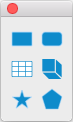


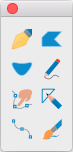


To Access Tool Palettes and Tools via the Toolbox Command:
If you are looking for a particular tool and are unsure where it is located in the Toolbox, choose Window | Toolbox to see the various tool groups.
To Open a Tool Palette:
Click on the arrow icon and select Show Group. The tool palette automatically opens and snaps to the right of the Toolbox.
To Access an Individual Tool:
Click on the arrow icon and select the particular tool from the menu. The tool will be selected in the Toolbox.
Hotkeys
You must be in Image Edit mode to use the hotkeys.
Use the following single-letter hotkeys when editing images:
Hotkey | Tool/Action |
A | Airbrush Tool |
B | Paintbrush Tool |
‘ (accent grave) or C | Set Default Stroke / Fill |
D | Sponge Tool |
E | Eraser Tool |
F | Blur Tool |
G | Blend Tool |
H | Marker Tool |
K | Bucket Tool |
L | Image Lasso Tool |
M | Marque Tool |
N | Burn Tool |
O | Dodge Tool |
P | Pencil Tool |
Q | Sharpen Tool |
R | Red Eye Reduction Tool |
S | Rubber Stamp Tool |
T | Neon Tool |
U | Smudge Tool |
V | Remote Move Tool |
X | Swap Fill / Stroke |
W | Wand Tool |
Option 0 - 9 | Switch Channels |
Recent Articles
Quick Reference Guide for canvasxdraw 26 for Windows
Click to view and download the Quick Reference Guide for canvasxdraw version 26. Other related links: Getting Started Guide: https://help.vectorgfx.net/en/canvas_x_draw/getting_started/canvas_x_draw_getting_started.pdf User Guide: ...Quick Reference Guide for canvasxdraw 26 for macOS
Click to view and download the Quick Reference Guide for canvasxdraw version 26. Other related links: Getting Started Guide: https://help.vectorgfx.net/en/canvas_x_draw/getting_started/canvas_x_draw_getting_started.pdf User Guide: ...User Guide for canvasxdraw 26 for macOS
Click to view and download the User Guide for canvasxdraw version 26. Other related links: Getting Started Guide: https://help.vectorgfx.net/en/canvas_x_draw/getting_started/canvas_x_draw_getting_started.pdf Quick Reference Guide: ...User Manual for canvasxdraw 26 for Windows
Click to view and download the User Guide for canvasxdraw version 26. Other related links: Getting Started Guide: https://help.vectorgfx.net/en/canvas_x_draw/getting_started/canvas_x_draw_getting_started.pdf Quick Reference Guide: ...Getting Started Guide for canvasxdraw 26 for Windows
Click to view and download the Getting Started Guide for canvasxdraw version 26. Other related links: Quick Reference Guide: https://help.vectorgfx.net/en/canvas_x_draw/quick_reference/canvas_x_draw_quick_reference.pdf User Guide: ...
Related Articles
Viewing the Smart Toolbox
Viewing the Smart Toolbox Select any tool in the Smart Toolbox and its palette, as well as related tools, automatically opens and snaps to the right of the Toolbox. The tool palette remains in that position until another tool is selected. To Display ...Using the Smart Vector Fill Tool
Using the Smart Vector Fill Tool With the Smart Vector Fill tool you can apply a fill to overlapping areas of vector objects. The tool creates a closed vector object which is equivalent to the area defined by multiple vector segments. To Use the ...Using the Smart Vector Fill Tool
Using the Smart Vector Fill Tool With the Smart Vector Fill tool you can apply a fill to overlapping areas of vector objects. The tool creates a closed vector object which is equivalent to the area defined by multiple vector segments. To Use the ...Using the Smart Vector Fill Tool
Using the Smart Vector Fill Tool With the Smart Vector Fill tool you can apply a fill to overlapping areas of vector objects. The tool creates a closed vector object which is equivalent to the area defined by multiple vector segments. To Use the ...Viewing Documents
Viewing Documents This section describes how you can adjust your view of a document. Viewing options in Canvas X Draw lets you: Control when Canvas X Draw redraws objects. Scroll to any area with the Hand tool or scroll bars. Increase or decrease the ...
Popular Articles
Version 26 released for all products!
New versions have arrived! Version 26 includes the first macOS universal app compatable with all macOS versions and chipsets! Installers, upgrades, and trial links below: Installer: canvasxdraw version 26 for macOS | Perpetual macOS users looking to ...User Guide for canvasxdraw 26 for macOS
Click to view and download the User Guide for canvasxdraw version 26. Other related links: Getting Started Guide: https://help.vectorgfx.net/en/canvas_x_draw/getting_started/canvas_x_draw_getting_started.pdf Quick Reference Guide: ...Welcome to Vector GFX!
Please bear with us as we are busy updating all of our help content. If you need immeadiate assistance submit a ticket at https://vgfxsupport.zohodesk.com/portal/en/newticket or e-mail info@vectorgfx.net. Other important links: * New: Website: ...Vector GFX: Quality Assurance Program Overview
Vector GFX: Quality Assurance Program Overview At Vector GFX, we are committed to delivering high-performance, stable desktop solutions. Because our software resides directly on our customers' local environments, our Quality Assurance (QA) program ...How many computers can I put a license on?
Overview: Each license can only be used to register the program on two computers. If you are looking to get more than one license, we can offer a discount for multiple licenses. Please contact our sales department at sales@vectorgfx.net. Applies To: ...