Using Vertical Justification
Using Vertical Justification
Canvas X Draw can align text relative to the top and bottom borders of text objects. Canvas X Draw has four vertical justification, or alignment, settings: Top, Bottom, Vertical Full, and Vertical Center. Vertical justification applies to an entire text object. Top vertical justification is the default setting for new text objects. Copying or duplicating text objects preserves their vertical justification settings; however, if you copy a text selection and paste it into another object, the text follows the vertical justification of the text object in which you paste it.
To Change the Vertical Justification:
- Select one or more text objects.
- Choose Text | Justification.
- Choose a vertical justification setting. A checkmark appears next to the selected setting.
There must be space in the text object to use vertical justification, not including space created by empty paragraphs. The text objects must be created with the Text Object tool, not the Text tool.
Vertical Justification Settings
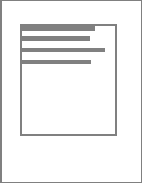
- Top: Sets all lines of type starting from the top of a text object. This is the traditional vertical alignment for text objects; e.g., if a text object contains three lines of type, they appear at the top of the text object. Spacing between lines is controlled by the Line Spacing, Before Paragraph, and After Paragraph settings of the text.
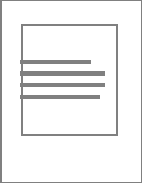
- Vertical Center: Sets all lines of type so they are spaced evenly above and below the vertical center of a text object. If a text object contains three lines of type, for example, the lines appear at the center of the text object. Spacing between lines is controlled by the Line Spacing, Before Paragraph, and After Paragraph settings of the text.
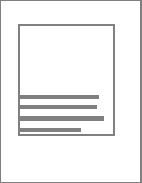
- Bottom: Sets all lines of type at the bottom of the text object. If a text object contains three lines of type, for example, the lines appear at the bottom of the text object. Spacing between lines is controlled by the Line Spacing, Before Paragraph, and After Paragraph settings of the text.
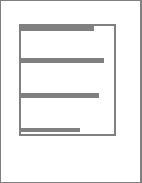
Vertical Full: Sets all lines of type so they are evenly spaced between the top and bottom borders of the text object. If a text object contains three lines of type, for example, one line appears at the top, one appears at the center, and one appears at the bottom of the text object. Because it distributes type from the top to the bottom of a text object, Vertical Full justification can cause very wide spacing between lines if a large text object contains a little text. You can drag a handle at the top or bottom of a text object to adjust its height and alter the spacing between lines of text.
Vertical Full: Sets all lines of type so they are evenly spaced between the top and bottom borders of the text object. If a text object contains three lines of type, for example, one line appears at the top, one appears at the center, and one appears at the bottom of the text object. Because it distributes type from the top to the bottom of a text object, Vertical Full justification can cause very wide spacing between lines if a large text object contains a little text. You can drag a handle at the top or bottom of a text object to adjust its height and alter the spacing between lines of text.
|
|
Top | Vertical Center |
|
|
Bottom | Vertical Full |
Recent Articles
Quick Reference Guide for canvasxdraw 26 for Windows
Click to view and download the Quick Reference Guide for canvasxdraw version 26. Other related links: Getting Started Guide: https://help.vectorgfx.net/en/canvas_x_draw/getting_started/canvas_x_draw_getting_started.pdf User Guide: ...Quick Reference Guide for canvasxdraw 26 for macOS
Click to view and download the Quick Reference Guide for canvasxdraw version 26. Other related links: Getting Started Guide: https://help.vectorgfx.net/en/canvas_x_draw/getting_started/canvas_x_draw_getting_started.pdf User Guide: ...User Guide for canvasxdraw 26 for macOS
Click to view and download the User Guide for canvasxdraw version 26. Other related links: Getting Started Guide: https://help.vectorgfx.net/en/canvas_x_draw/getting_started/canvas_x_draw_getting_started.pdf Quick Reference Guide: ...User Manual for canvasxdraw 26 for Windows
Click to view and download the User Guide for canvasxdraw version 26. Other related links: Getting Started Guide: https://help.vectorgfx.net/en/canvas_x_draw/getting_started/canvas_x_draw_getting_started.pdf Quick Reference Guide: ...Getting Started Guide for canvasxdraw 26 for Windows
Click to view and download the Getting Started Guide for canvasxdraw version 26. Other related links: Quick Reference Guide: https://help.vectorgfx.net/en/canvas_x_draw/quick_reference/canvas_x_draw_quick_reference.pdf User Guide: ...
Related Articles
Using Vertical Justification
Using Vertical Justification Canvas X Draw can align text relative to the top and bottom borders of text objects. Canvas X Draw has four vertical justification, or alignment, settings: Top, Bottom, Vertical Full, and Vertical Center. Vertical ...Using Vertical Justification
Using Vertical Justification Canvas X Draw can align text relative to the top and bottom borders of text objects. Canvas X Draw has four vertical justification, or alignment, settings: Top, Bottom, Vertical Full, and Vertical Center. Vertical ...Using Vertical Justification
Using Vertical Justification Canvas X Draw can align text relative to the top and bottom borders of text objects. Canvas X Draw has four vertical justification, or alignment, settings: Top, Bottom, Vertical Full, and Vertical Center. Vertical ...Adjusting Spacing and Justification
Adjusting Spacing and Justification You can adjust where your text is oriented on the page, as well as the line and word spacing. The following options are also available from the Properties bar and Context menu. To Make Letter and Line Spacing ...Adjusting Spacing and Justification
Adjusting Spacing and Justification You can adjust where your text is oriented on the page, as well as the line and word spacing. The following options are also available from the Properties bar and Context menu. To Make Letter and Line Spacing ...
Popular Articles
Version 26 released for all products!
New versions have arrived! Version 26 includes the first macOS universal app compatable with all macOS versions and chipsets! Installers, upgrades, and trial links below: Installer: canvasxdraw version 26 for macOS | Perpetual macOS users looking to ...User Guide for canvasxdraw 26 for macOS
Click to view and download the User Guide for canvasxdraw version 26. Other related links: Getting Started Guide: https://help.vectorgfx.net/en/canvas_x_draw/getting_started/canvas_x_draw_getting_started.pdf Quick Reference Guide: ...Welcome to Vector GFX!
Please bear with us as we are busy updating all of our help content. If you need immeadiate assistance submit a ticket at https://vgfxsupport.zohodesk.com/portal/en/newticket or e-mail info@vectorgfx.net. Other important links: * New: Website: ...Vector GFX: Quality Assurance Program Overview
Vector GFX: Quality Assurance Program Overview At Vector GFX, we are committed to delivering high-performance, stable desktop solutions. Because our software resides directly on our customers' local environments, our Quality Assurance (QA) program ...How many computers can I put a license on?
Overview: Each license can only be used to register the program on two computers. If you are looking to get more than one license, we can offer a discount for multiple licenses. Please contact our sales department at sales@vectorgfx.net. Applies To: ...