Types of Strokes
Types of Strokes
Canvas X Draw has five basic types of pen strokes, as well as arrows and dashes, which you can use to create unlimited variations.
Pen Strokes
The following types of strokes appear on Pen tab of the Presets palette.


Arrows and Dashes
Arrows and dashes can be applied to strokes for additional effects. Click on the Dash tab or Arrow tab in the Presets palette to apply these to a stroke.
Arrow: You can use preset or custom arrowheads that appear at the endpoints of each path segment. |
|
Dash: You can apply preset or custom dash sequences that divide solid strokes into solid and blank segments. |
|


How Inks Affect Strokes
You define the colors that apply to strokes separately from the pen stroke settings. The pen ink (specified in the Presets palette) and the pen stroke settings together produce the appearance of an object’s outline. The pen ink is the color (or pattern) that “paints” the object’s stroke. Therefore, the object must have a visible pen ink for the stroke to be visible. Conversely, the object must have a stroke for the pen ink to be visible.
Some inks can make strokes invisible. If the pen ink is set to “no ink,” the stroke won’t be visible. Also, if the pen ink is set to white or a color that matches the background, the stroke could disappear against the background.
Current Stroke
The Strokes icon in the Toolbox shows a sample of the current stroke, the stroke that Canvas X Draw applies to new vector objects you create. For example, if the current pen stroke is 3 points wide, new objects you draw will have a 3-pt pen stroke. Canvas X Draw does not apply the current stroke to text. (See Applying Strokes to Text.)

To Change the Current Stroke:
- Make sure no objects are selected in the document.
- Click the Stroke icon in the Toolbox.
- Select a stroke.
To Change the Stroke for a Selected Object:
- Select an object.
- Click the Stroke icon in the Toolbox.
- Select a stroke.
When you first install Canvas X Draw, the current stroke defaults to a 1-pt pen stroke without dashes or arrowheads.
Applying Strokes to Text
You can apply strokes to text the same as to vector objects, in most cases. For information about selecting text objects and text characters, see Formatting Text and Formatting Text with the Properties Bar.
When you first type or import text into a document, Canvas X Draw applies a black 1-point pen stroke to the text, but does not assign a fill ink. You can apply pen, parallel, and neon strokes to text. You can also apply dashes to text that has a pen or neon stroke. If you select a text object, Canvas X Draw applies a stroke to all the text it contains. If you select specific characters within a text object, Canvas X Draw applies the stroke to those characters only.
| Calligraphic pen stroke |
| Neon stroke |

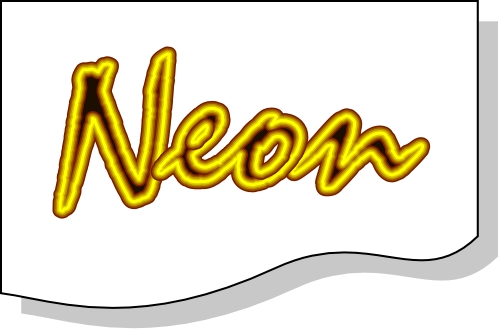
The appearance of a parallel stroke applied to text might not appear as you expect, especially on characters with hollow centers (such as “O” and “P”) and characters with tight corners or paths that meet or cross (including “G” and “X”).
Removing a neon or parallel stroke from text (by choosing “no stroke”) does not remove the stroke entirely. Instead, the stroke reverts to a black 1-pt pen stroke.
Recent Articles
Quick Reference Guide for canvasxdraw 26 for Windows
Click to view and download the Quick Reference Guide for canvasxdraw version 26. Other related links: Getting Started Guide: https://help.vectorgfx.net/en/canvas_x_draw/getting_started/canvas_x_draw_getting_started.pdf User Guide: ...Quick Reference Guide for canvasxdraw 26 for macOS
Click to view and download the Quick Reference Guide for canvasxdraw version 26. Other related links: Getting Started Guide: https://help.vectorgfx.net/en/canvas_x_draw/getting_started/canvas_x_draw_getting_started.pdf User Guide: ...User Guide for canvasxdraw 26 for macOS
Click to view and download the User Guide for canvasxdraw version 26. Other related links: Getting Started Guide: https://help.vectorgfx.net/en/canvas_x_draw/getting_started/canvas_x_draw_getting_started.pdf Quick Reference Guide: ...User Manual for canvasxdraw 26 for Windows
Click to view and download the User Guide for canvasxdraw version 26. Other related links: Getting Started Guide: https://help.vectorgfx.net/en/canvas_x_draw/getting_started/canvas_x_draw_getting_started.pdf Quick Reference Guide: ...Getting Started Guide for canvasxdraw 26 for Windows
Click to view and download the Getting Started Guide for canvasxdraw version 26. Other related links: Quick Reference Guide: https://help.vectorgfx.net/en/canvas_x_draw/quick_reference/canvas_x_draw_quick_reference.pdf User Guide: ...
Related Articles
Types of Strokes
Types of Strokes Canvas X Draw has five basic types of pen strokes, as well as arrows and dashes, which you can use to create unlimited variations. Pen Strokes The following types of strokes appear on Pen tab of the Presets palette. Standard: Strokes ...Types of Strokes
Types of Strokes Canvas X Draw has five basic types of pen strokes, as well as arrows and dashes, which you can use to create unlimited variations. Pen Strokes The following types of strokes appear on Pen tab of the Presets palette. Standard: Strokes ...Customizing Strokes
Customizing Strokes You can customize strokes in the Attributes palette: Display the strokes settings of selected objects. Create custom pen, parallel, calligraphic, and neon strokes. Create custom arrowheads and dash sequences. Apply custom settings ...Customizing Strokes
Customizing Strokes You can customize strokes in the Attributes palette: Display the strokes settings of selected objects. Create custom pen, parallel, calligraphic, and neon strokes. Create custom arrowheads and dash sequences. Apply custom settings ...Customizing Strokes
Customizing Strokes You can customize strokes in the Attributes palette: Display the strokes settings of selected objects. Create custom pen, parallel, calligraphic, and neon strokes. Create custom arrowheads and dash sequences. Apply custom settings ...
Popular Articles
Version 26 released for all products!
New versions have arrived! Version 26 includes the first macOS universal app compatable with all macOS versions and chipsets! Installers, upgrades, and trial links below: Installer: canvasxdraw version 26 for macOS | Perpetual macOS users looking to ...User Guide for canvasxdraw 26 for macOS
Click to view and download the User Guide for canvasxdraw version 26. Other related links: Getting Started Guide: https://help.vectorgfx.net/en/canvas_x_draw/getting_started/canvas_x_draw_getting_started.pdf Quick Reference Guide: ...Welcome to Vector GFX!
Please bear with us as we are busy updating all of our help content. If you need immeadiate assistance submit a ticket at https://vgfxsupport.zohodesk.com/portal/en/newticket or e-mail info@vectorgfx.net. Other important links: * New: Website: ...Vector GFX: Quality Assurance Program Overview
Vector GFX: Quality Assurance Program Overview At Vector GFX, we are committed to delivering high-performance, stable desktop solutions. Because our software resides directly on our customers' local environments, our Quality Assurance (QA) program ...How many computers can I put a license on?
Overview: Each license can only be used to register the program on two computers. If you are looking to get more than one license, we can offer a discount for multiple licenses. Please contact our sales department at sales@vectorgfx.net. Applies To: ...