Artistic Effects
Artistic Effects
The artistic filters, Crystallize, Lens Flare, Oil Painting, and Stained Glass, can be applied to images, text, and vector objects.
For images, access the filters by choosing Image | Filter | Artistic or use the Filter menu in the Properties bar. For text and vector objects, choose Object | SpriteEffects | Add Effect | Artistic. (See Using SpriteEffects.)
Crystallize
This filter applies a crystal-like appearance to a selected image.
| Before Crystallize filter |
| After Crystallize filter is applied |


Crystallize Dialog Box
Crystal Size | The size and saturation of the crystals can be adjusted numerically or by moving the appropriate slider bar. |
Crystal Saturation | The color of the background will influence the appearance of your image. |
Use White Background | By default, the background is set to black. You have the option to set the background to white. You may do this by checking the Use White Background checkbox. |
Anti-alias Crystals | Select the Anti-alias Crystals option for Web graphics. |
Lens Flare
This filter mimics the appearance of a well-known photographic effect. It is caused by reflections of light that may occur inside the camera lens. A flare can often naturally appear as a source of light in a photographic scene or on a highly reflective object.
| Before Lens Flare |
| After Lens Flare |
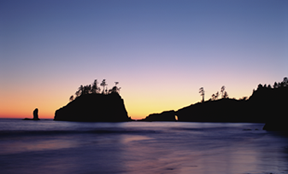

Lens Flare Dialog Box
Light Source Position | The flare may be adjusted by using your mouse to move the flare highlight in the preview window. |
X and Y | The flare may also be moved by entering numerical values in the X or Y coordinates box. |
Zoom | Adjust the slider or numerical values to adjust the zoom. |
Light Intensity | Adjust the slider or numerical values to adjust the light intensity. |
Oil Painting
Use the Oil Painting filter to give an object the appearance of hand-painted artwork.
| Before Oil Painting |
| After Oil Painting filter |


Oil Painting Dialog Box
Brush Size | Adjust the size of the brush effect by moving the slider bar. You also have the option to enter a numerical value in the brush size field. |
Preview | If you wish to preview the effects of the filter, then select the Preview checkbox. |
Stained Glass
This filter applies a stained-glass appearance to an object.
| Before Stained Glass |
| After Stained Glass filter |


Stained Glass
Tile Size | Adjust the effect of the filter by moving the Tile Size slider or by changing the numerical value in the field. |
Tile Shape | Select either square or hexagon tile shapes. |
Anti-Alias | If your work is for the Web, select the Anti-alias Tiles option. |
Border Thickness | Adjust the size and the thickness of the space that separates each piece of “stained glass”. |
Bevel
Use the Bevel filter to give any 2D image a 3D appearance. If you are creating Web buttons and want to give the buttons a raised appearance, apply the Bevel filter.
When working with images, you can access the Bevel filter dialog by choosing Image | Filter | Stylize | Bevel. For vector or text objects, choose Object | SpriteEffects | Add Effect | Stylize | Bevel. (See Using SpriteEffects.)
For images, ensure you apply a visibility mask to the area of the image to which you’ll apply the effect. (See Adding Visibility Masks to Images.) If the image has a transparency mask, select the area to be beveled with either the Wand tool or Marquee tools.
| Before Bevel effect |
| After Bevel effect |


Bevel Dialog Box
Direction | Direction of the light source can be entered by a numeric value, slider bar, or preview handle. |
Elevation | Elevation of light source can be entered by a numeric value or slider bar. |
Brightness | Brightness of light source can be entered by a numeric value or slider bar. |
Bevel Width | Bevel width can be entered by a numeric value or slider bar. |
Edge Smoothness | Edge Smoothness can be entered by a numeric value or slider bar. |
Corner Smoothness | Corner Smoothness can be entered by a numeric value or slider bar. |
Recent Articles
Quick Reference Guide for canvasxdraw 26 for Windows
Click to view and download the Quick Reference Guide for canvasxdraw version 26. Other related links: Getting Started Guide: https://help.vectorgfx.net/en/canvas_x_draw/getting_started/canvas_x_draw_getting_started.pdf User Guide: ...Quick Reference Guide for canvasxdraw 26 for macOS
Click to view and download the Quick Reference Guide for canvasxdraw version 26. Other related links: Getting Started Guide: https://help.vectorgfx.net/en/canvas_x_draw/getting_started/canvas_x_draw_getting_started.pdf User Guide: ...User Guide for canvasxdraw 26 for macOS
Click to view and download the User Guide for canvasxdraw version 26. Other related links: Getting Started Guide: https://help.vectorgfx.net/en/canvas_x_draw/getting_started/canvas_x_draw_getting_started.pdf Quick Reference Guide: ...User Manual for canvasxdraw 26 for Windows
Click to view and download the User Guide for canvasxdraw version 26. Other related links: Getting Started Guide: https://help.vectorgfx.net/en/canvas_x_draw/getting_started/canvas_x_draw_getting_started.pdf Quick Reference Guide: ...Getting Started Guide for canvasxdraw 26 for Windows
Click to view and download the Getting Started Guide for canvasxdraw version 26. Other related links: Quick Reference Guide: https://help.vectorgfx.net/en/canvas_x_draw/quick_reference/canvas_x_draw_quick_reference.pdf User Guide: ...
Related Articles
Artistic Effects
Artistic Effects The artistic filters, Crystallize, Lens Flare, Oil Painting, and Stained Glass, can be applied to images, text, and vector objects. For images, with the image selected, access the filters by choosing Image | Filter | Artistic or ...Artistic Effects
Artistic Effects The artistic filters, Crystallize, Lens Flare, Oil Painting, and Stained Glass, can be applied to images, text, and vector objects. For images, with the image selected, access the filters by choosing Image | Filter | Artistic or ...Using Sprite Effects
Using SpriteEffects SpriteEffects let you apply image effects and filters to vector objects, images, text, and grouped objects. The types of effects and filters you can apply include: Artistic effects, such as Crystallize, Lens Flare, Oil Painting, ...Effects Area
Effects Area When you apply effects to an object, Canvas X Draw defines a rectangular effects area. Usually, the effects area is slightly larger than the bounding box of the object to which the effects are applied. There is one effects area for all ...Effects Area
Effects Area When you apply effects to an object, Canvas X Draw defines a rectangular effects area. Usually, the effects area is slightly larger than the bounding box of the object to which the effects are applied. There is one effects area for all ...
Popular Articles
Version 26 released for all products!
New versions have arrived! Version 26 includes the first macOS universal app compatable with all macOS versions and chipsets! Installers, upgrades, and trial links below: Installer: canvasxdraw version 26 for macOS | Perpetual macOS users looking to ...User Guide for canvasxdraw 26 for macOS
Click to view and download the User Guide for canvasxdraw version 26. Other related links: Getting Started Guide: https://help.vectorgfx.net/en/canvas_x_draw/getting_started/canvas_x_draw_getting_started.pdf Quick Reference Guide: ...Welcome to Vector GFX!
Please bear with us as we are busy updating all of our help content. If you need immeadiate assistance submit a ticket at https://vgfxsupport.zohodesk.com/portal/en/newticket or e-mail info@vectorgfx.net. Other important links: * New: Website: ...Vector GFX: Quality Assurance Program Overview
Vector GFX: Quality Assurance Program Overview At Vector GFX, we are committed to delivering high-performance, stable desktop solutions. Because our software resides directly on our customers' local environments, our Quality Assurance (QA) program ...How many computers can I put a license on?
Overview: Each license can only be used to register the program on two computers. If you are looking to get more than one license, we can offer a discount for multiple licenses. Please contact our sales department at sales@vectorgfx.net. Applies To: ...